

How to Set Featured Image on Post in WordPress
Let’s know about the featured image on Post.
Featured image is generally displayed on the Blog/Archive/Category and Single post page. If there is a missing image on a single page, archive page, or category page, there may be a missing featured image on a post. So, please add a featured image on a post so that your category page, archive page, and a single page will be fine. Please follow the below steps to set the featured image on the posts.
- Go to Admin Panel
- Go to Posts > Add New
- Give the Title of the Post
- Write the Content of the post
- Scroll down and see on the lower right corner (Set featured image)
- Click on “Set featured image” and select the image from the library or upload from the local drive
- Click on the “Publish” button to publish the article.
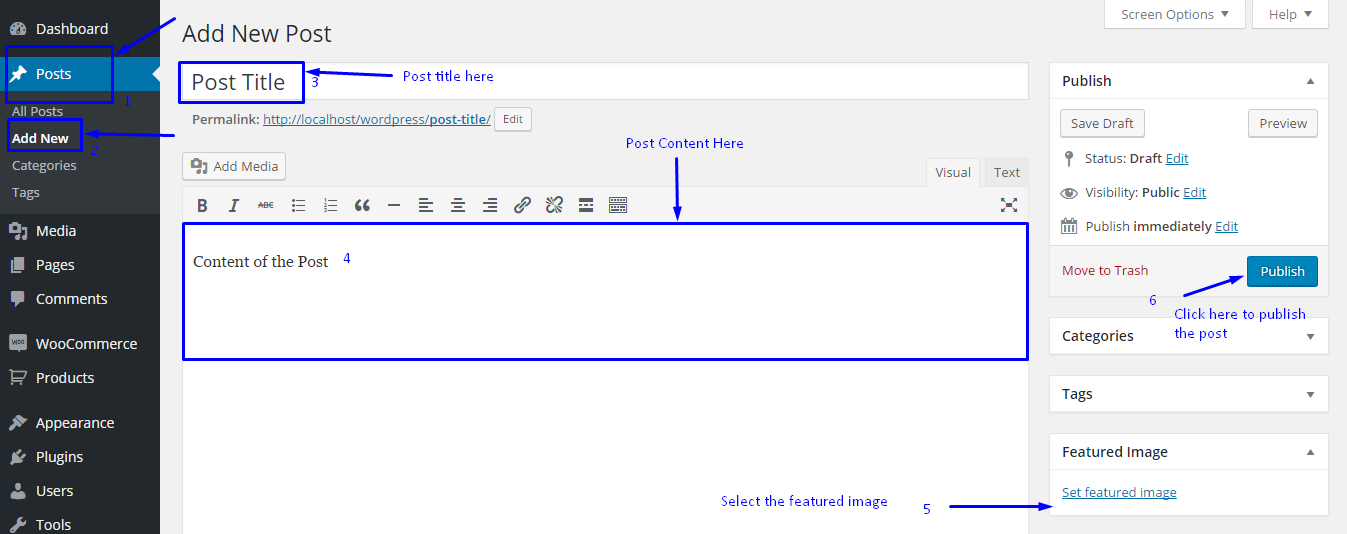
Setting Featured Image on Gutenberg Editor
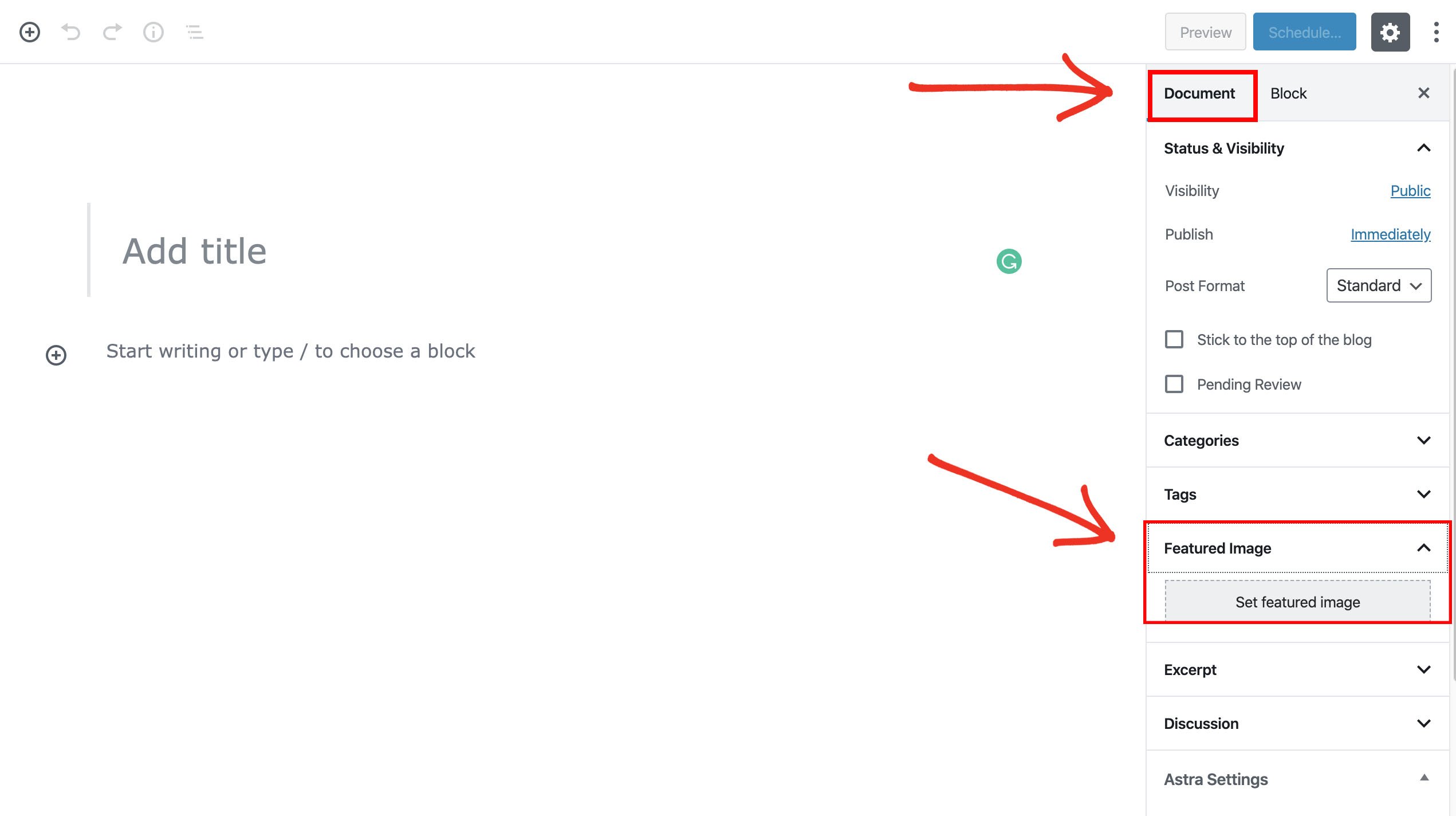
In the Gutenberg block editor you get the featured image option in the Document>Featured Image section. See the image below-
If you have any confusion please post your question below in the comment box.
Check Other Articles
SEO Blogs
- 15+ On-Page SEO Techniques You Must Implement to Rank Higher
- 13 Essential SEO Tips For WordPress Website
- 10 Off-Page SEO Techniques
If you liked this article, then consider following us on Twitter and Facebook and LinkedIn.
Last updated for 2026. This article is reviewed annually to keep the information accurate and current. For the most up-to-date WordPress guidance, bookmark this page or subscribe to our newsletter.
Wrapping Up
This guide covered the essentials of Set Featured Image on Post. For ongoing coverage and the latest set featured image on post tips, subscribe to the Acme Themes newsletter or follow us on social media. Have a specific question about set featured image on post? Drop a comment below — our team reads and responds to every query within 48 hours.
Last updated: June 2026. Reviewed for accuracy against WordPress 6.5+ core.
Your article gave me a lot of inspiration, I hope you can explain your point of view in more detail, because I have some doubts, thank you.
Your article gave me a lot of inspiration, I hope you can explain your point of view in more detail, because I have some doubts, thank you.